Showing posts with label factory. Show all posts

Monday, September 29, 2014

Nokia N8 Format Hard Reset to Factory Settings Procedures


Uploaded with ImageShack.us


This a simple instruction on how to factory reset the Nokia N8 and restores the phone to its original factory default settings.

Factory reset through Menu Settings, this is only a soft reset and it restores all data to factory default.

1. From Main Menu go to Settings
2. Select Phone
3. Select Phone Management
4. Select Factory Settings then Delete Data and Restore


Hard Reset


Uploaded with ImageShack.us


Hard Reset
Note: This will delete all your applications installed and you may need to install it back again after the hard reset has been made. This is only advisable if you have a screen problem errors like, hang or frozen problems. So proceed with precautions.

This is how to hard reset the Nokia N8 through button combination:

* Turn off the phone.
* Press and hold the following Button keys:
o Volume Down button
o Camera button
o Menu button
Press the Power button until the phone vibrates....


Once the process completes, the Nokia N8 will then reboot, any installed data or 3rd-party applications already wipe out. You may need to re-install it back again.

Wednesday, July 30, 2014

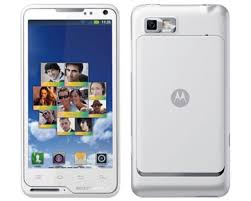
Motorola Motoluxe Xt615 Restore Factory Hard Reset Remove Pattern Lock

motorola Motoluxe Xt615 Restore Factory Hard Reset Remove Pattern Lock
Motorola Motoluxe Xt615 Restore Factory Hard Reset Remove Pattern Lock
It will remove all the data ,contacts and apps that you installed

The Hard Reset / Factory Reset operation can fix many software related errors and problems:- 
After installing bad or unsupported application into your Samsung mobile phone which causes your phone to be frozen. – Your Samsung mobile phone doesn’t respond to any order after booting because of some software errors.
– Forgotten pattern lock in Samsung Android mobile phones.
– Forgotten user code.
– Forgotten phone code.
– Before or after installing new firmware updates into your device.
– Before selling the device to Wipe all your saved data.
Motorola Motoluxe Xt615 Hard Reset Keys:
1.Power Off Your Phone
2.Press Together Volume Up + Volume Down + Power Button Until Motorola Logo Appears
3.Press Home Key To Enter In Recovery Menu
4.Select With Volume Buttons "wipe Data" And Press Power To Confirm
5.Select "yes" And Press Power To Confirm
6.Press Power To Confirm "reboot"
7.Wait Until The Phone Restarts
Notice: The hard reset operation will delete anything that are saved in your phone’s internal memory, So make a backup of your data in case you can access them.
Motorola Motoluxe Xt615 Restore Factory Hard Reset Format Phone.So lets start the Motorola Motoluxe Xt615 Restore Factory, Motorola Motoluxe Xt615 Hard Reset.Turn Off the mobile phone for few mints.Motorola Motoluxe Xt615 Remove Pattern Lock.

Wednesday, July 23, 2014

Kyocera ECHO M9300 Hard Reset to Factory Settings


These is the step by step procedures on how to hard reset the Kyocera M9300 ECHO  with Android OS, v2.2 (Froyo), 1GHz Scorpion processor, Qualcomm QSD 8650 Snapdragon.


Please note: Performing a factory reset is only advisable if you want to return back the phone to its original factory default settings and also fix some abnormal functions of the device.
Just make a back up copy of all your personal data before proceeding because the result of this process will delete all data you previously installed on the device.
This is a simple guide if you want to return the device to its original factory settings again.


Factory data reset of Kyocera M9300 ECHO:

1. On the main home screen, select menu
2. Select Settings, then Privacy
3. Select Factory data reset
4. Select Reset phone
5. Enter the password if prompted, then confirm by selecting Erase everything


Kyocera M9300 ECHO Hard reset, this may help if the phone experience some hang or frozen on some applications:

1. Turn the phones power off. Take the battery out from the device, wait a couple of seconds and reinsert it back again.
2. Now, Hold the Volume Down button
3. Then press and hold the Power button until the device turns on
4. A menu will show up like: Fastbook, Recovery, Clear Storage, and Simlock
5. Just select Clear Storage by pressing the Volume Down button
6. Then press and release the Power button
7. Select Volume Up if YES and Volume Down for NO


Once the reset process is complete, the phone will then reboot to its factory fresh state settings.
Any data including third-party applications previously stored from the Kyocera M9300 ECHO already wiped or deleted.

Saturday, April 5, 2014

Netphone 701 factory reset Done


Hold Volume up + home + Power ,, Wipe data/factory reset, yes , reboot system now